> ## Documentation Index
> Fetch the complete documentation index at: https://docs.multex.tech/llms.txt
> Use this file to discover all available pages before exploring further.
# Awards Setup
> Configure recognition and medal systems
## What is Awards Setup?
Awards Setup allows you to create medals or other forms of recognition for your users. Awards can be given through the `/award` command.
Awards are different from Roblox ranks or Discord roles - they're recognitions that showcase member achievements and create motivation for excellence within your community.
## Step 1: Setup Tab
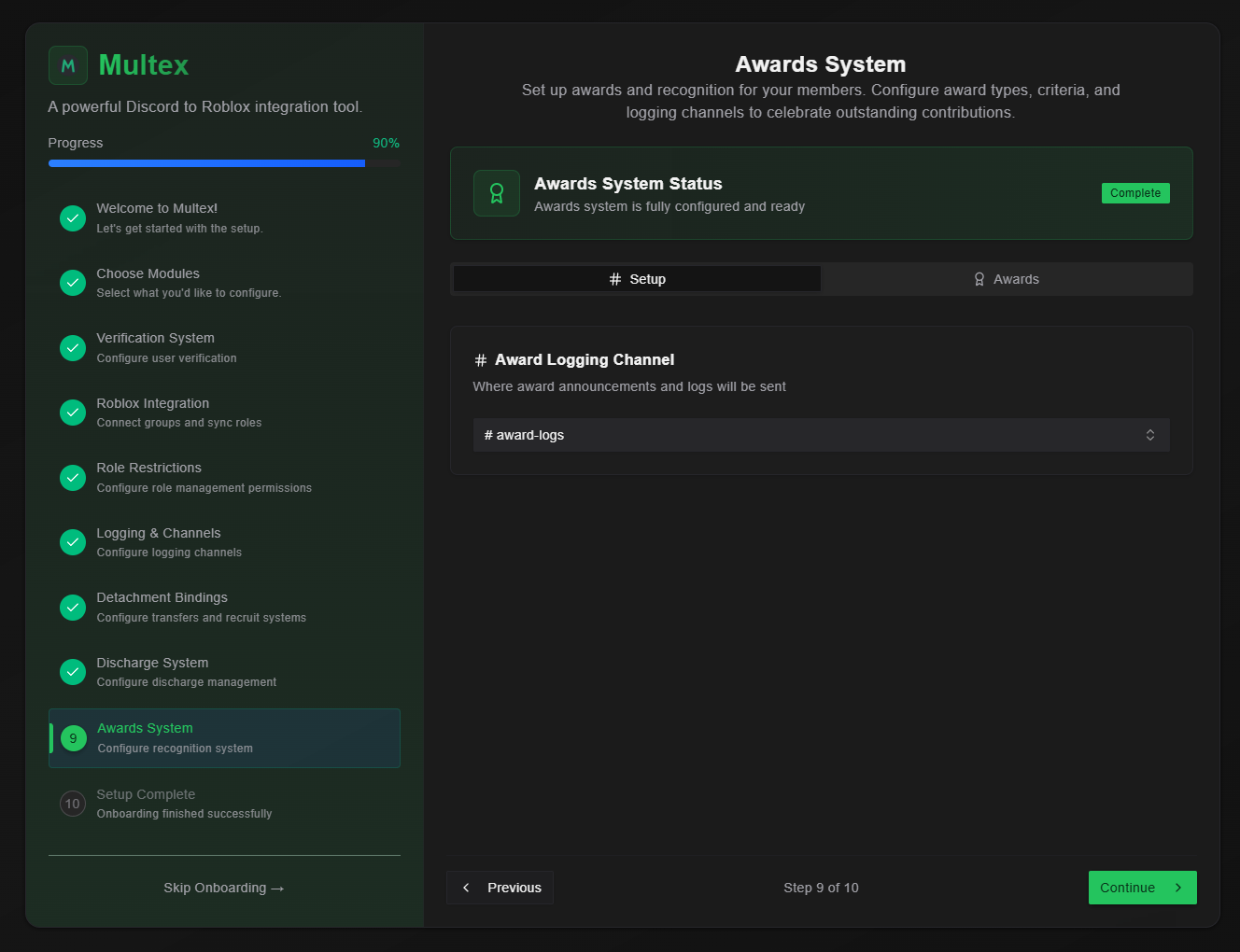 The Setup Tab allows you to select a Discord channel to send award logs.
## Step 2: Awards Tab
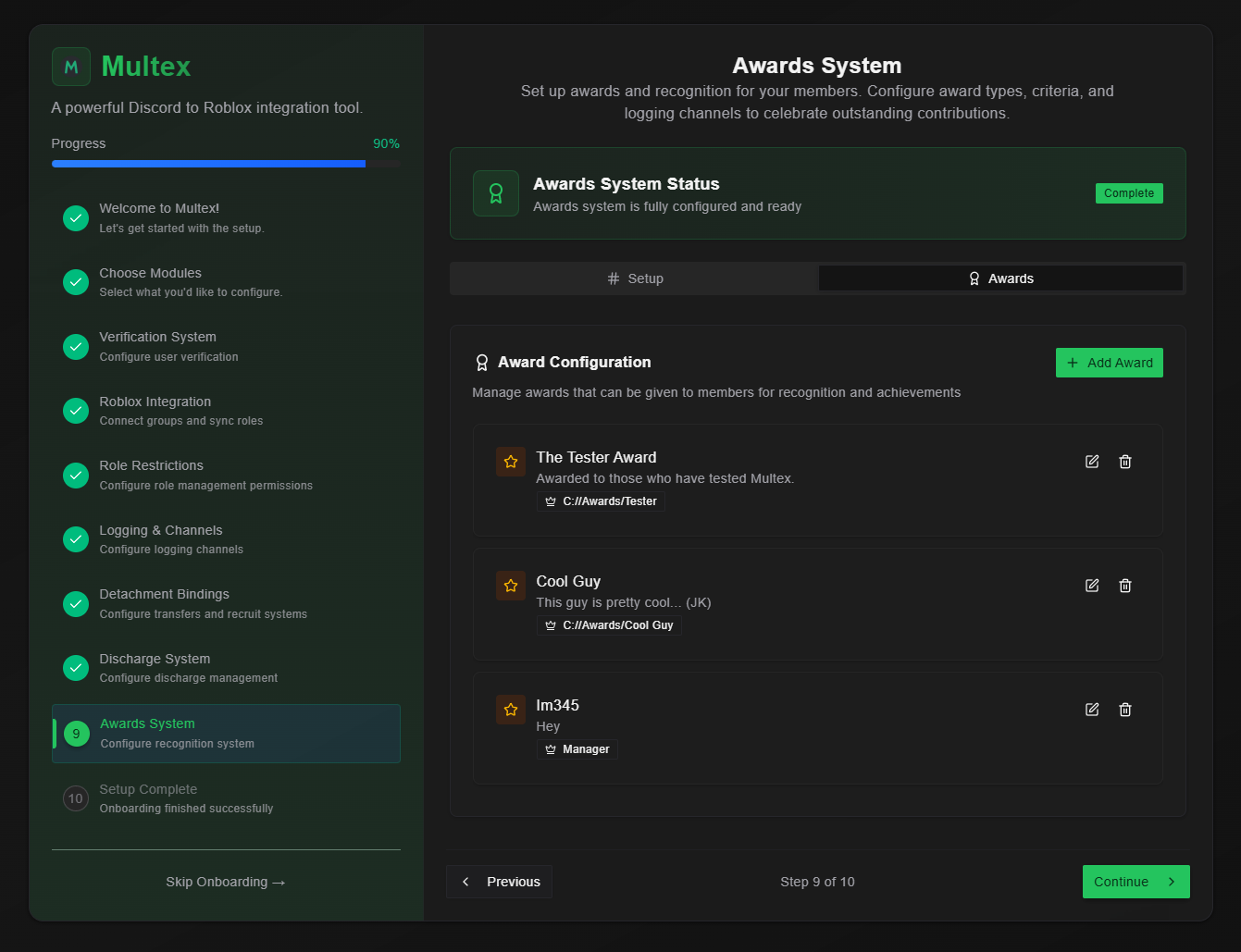
The Setup Tab allows you to select a Discord channel to send award logs.
## Step 2: Awards Tab
 ## Step 3: Create New Awards
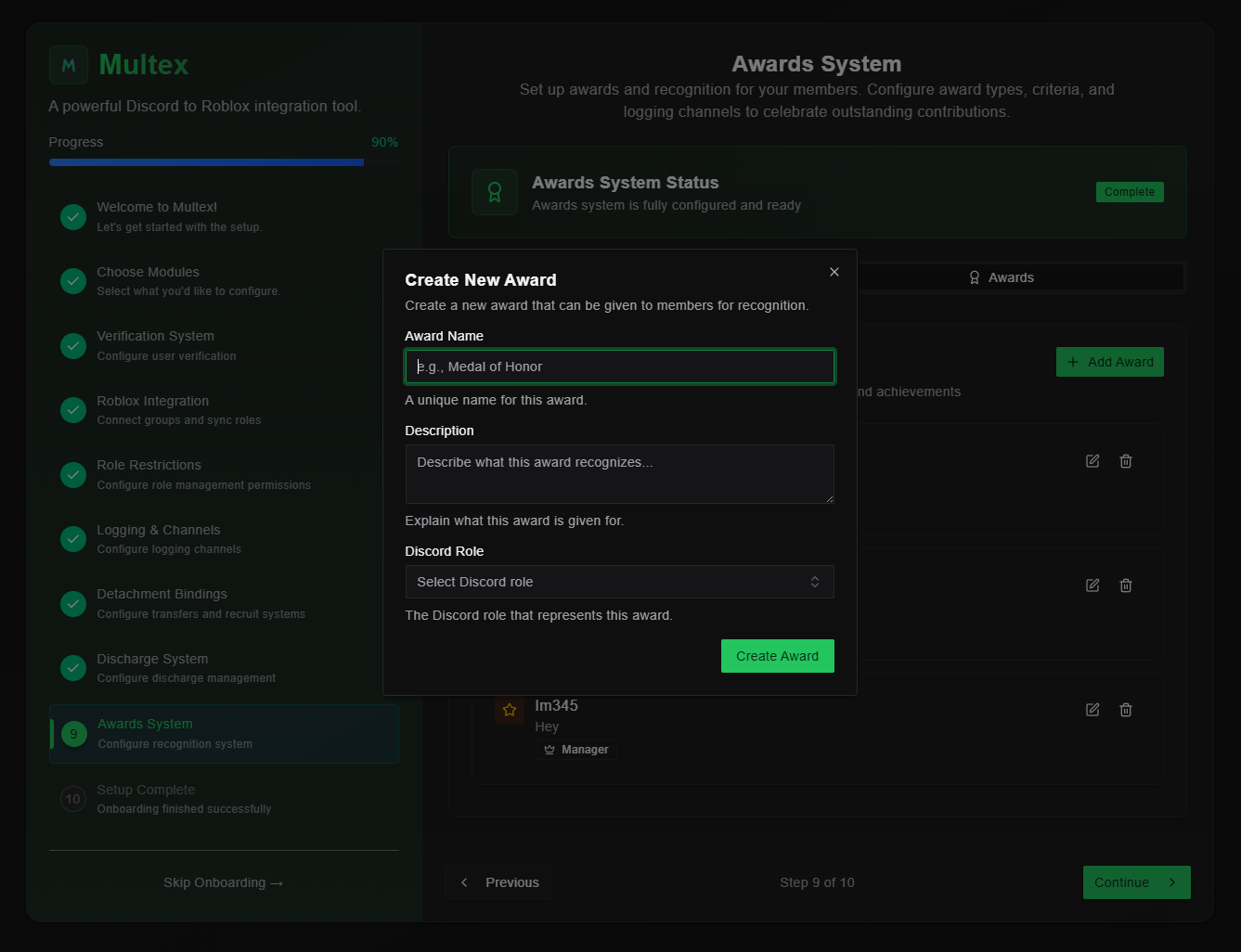 1. **Click "Add Award"** to begin creating a new award
2. **Award Details:**
* **Award Name** - Choose a clear, descriptive name (e.g., "Service Excellence Medal")
* **Description** - Explain what the award represents and criteria for earning it
* **Discord Role** - Bind a Discord role to the award. The bot will automatically give this award after using `/award`. Users with manage role permissions can also just manually give the award and it will be logged.
3. **Click "Create Award"** to save the new award configuration
## Step 5: Edit Existing Awards
1. **Click "Add Award"** to begin creating a new award
2. **Award Details:**
* **Award Name** - Choose a clear, descriptive name (e.g., "Service Excellence Medal")
* **Description** - Explain what the award represents and criteria for earning it
* **Discord Role** - Bind a Discord role to the award. The bot will automatically give this award after using `/award`. Users with manage role permissions can also just manually give the award and it will be logged.
3. **Click "Create Award"** to save the new award configuration
## Step 5: Edit Existing Awards
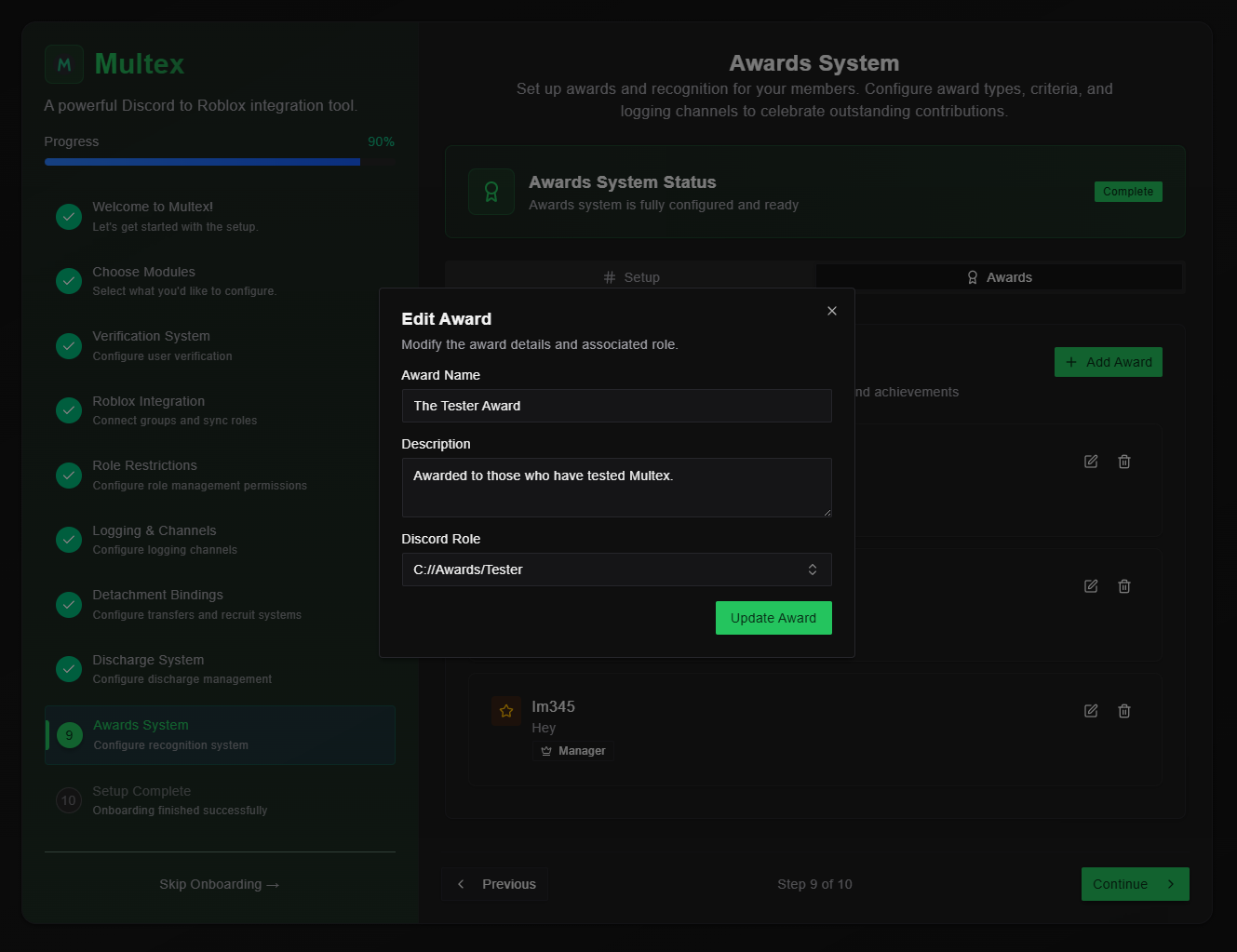 1. **Select Award Edit Icon** to edit from the award
2. **Update Award Details:**
* Modify name, description, or binded Discord role
3. **Update Award** to apply all updates
Awards are powerful tools for community engagement and motivation. Start with a few basic awards and expand your system based on community response and participation.
1. **Select Award Edit Icon** to edit from the award
2. **Update Award Details:**
* Modify name, description, or binded Discord role
3. **Update Award** to apply all updates
Awards are powerful tools for community engagement and motivation. Start with a few basic awards and expand your system based on community response and participation.