> ## Documentation Index
> Fetch the complete documentation index at: https://docs.multex.tech/llms.txt
> Use this file to discover all available pages before exploring further.
# Logging Setup
> Configure audit trails and monitoring
## What is Logging Setup?
Logging Setup configures audit trails and monitoring for your server within specific Discord channels.
Note: Logging Setup is not required. Everything is still logged in the database. Command audit logs are also still available in the dashboard.
## Step 1: Access Logging Configuration
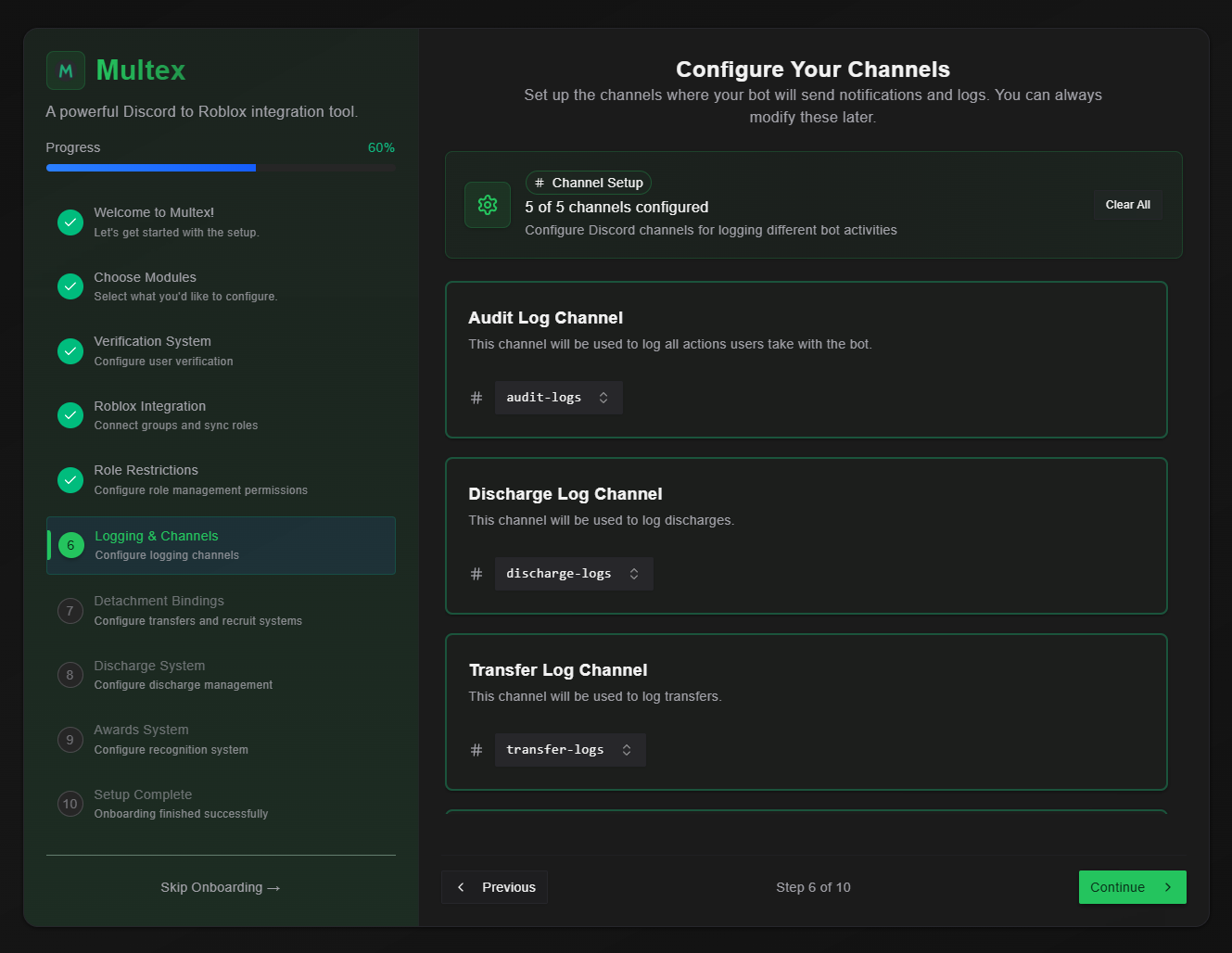 From your onboarding dashboard, select **Logging & Channels** to begin configuring audit trails and monitoring.
## Step 2: Configure Log Types
Select a Discord channel one or more of the possible logs:
1. **Audit Log Channel**
* **Commands** - Commands ran by users
* **Ranking** - User rank changes and who authorized the change
2. **Discharge Log Channel**
* **Discharges** - Discharge information
3. **Transfer Log Channel**
* **Transfers** - Transfer information
4. **Award Log Channel**
* **Awards** - Award information
5. **Barred Log Channel**
* **Bars** - Bar information
Proper logging is essential for server administration, security, and compliance. You can choose to log everything within a single channel, but organization is key to successful groups.
From your onboarding dashboard, select **Logging & Channels** to begin configuring audit trails and monitoring.
## Step 2: Configure Log Types
Select a Discord channel one or more of the possible logs:
1. **Audit Log Channel**
* **Commands** - Commands ran by users
* **Ranking** - User rank changes and who authorized the change
2. **Discharge Log Channel**
* **Discharges** - Discharge information
3. **Transfer Log Channel**
* **Transfers** - Transfer information
4. **Award Log Channel**
* **Awards** - Award information
5. **Barred Log Channel**
* **Bars** - Bar information
Proper logging is essential for server administration, security, and compliance. You can choose to log everything within a single channel, but organization is key to successful groups.