> ## Documentation Index
> Fetch the complete documentation index at: https://docs.multex.tech/llms.txt
> Use this file to discover all available pages before exploring further.
# Roblox Integration
> Connect your Discord server to your Roblox group
## What is Roblox Integration?
Roblox Integration connects your Discord server to your Roblox group, allowing automatic rank sync \[coming soon] and role management.
## Step 1: Access Roblox Integration
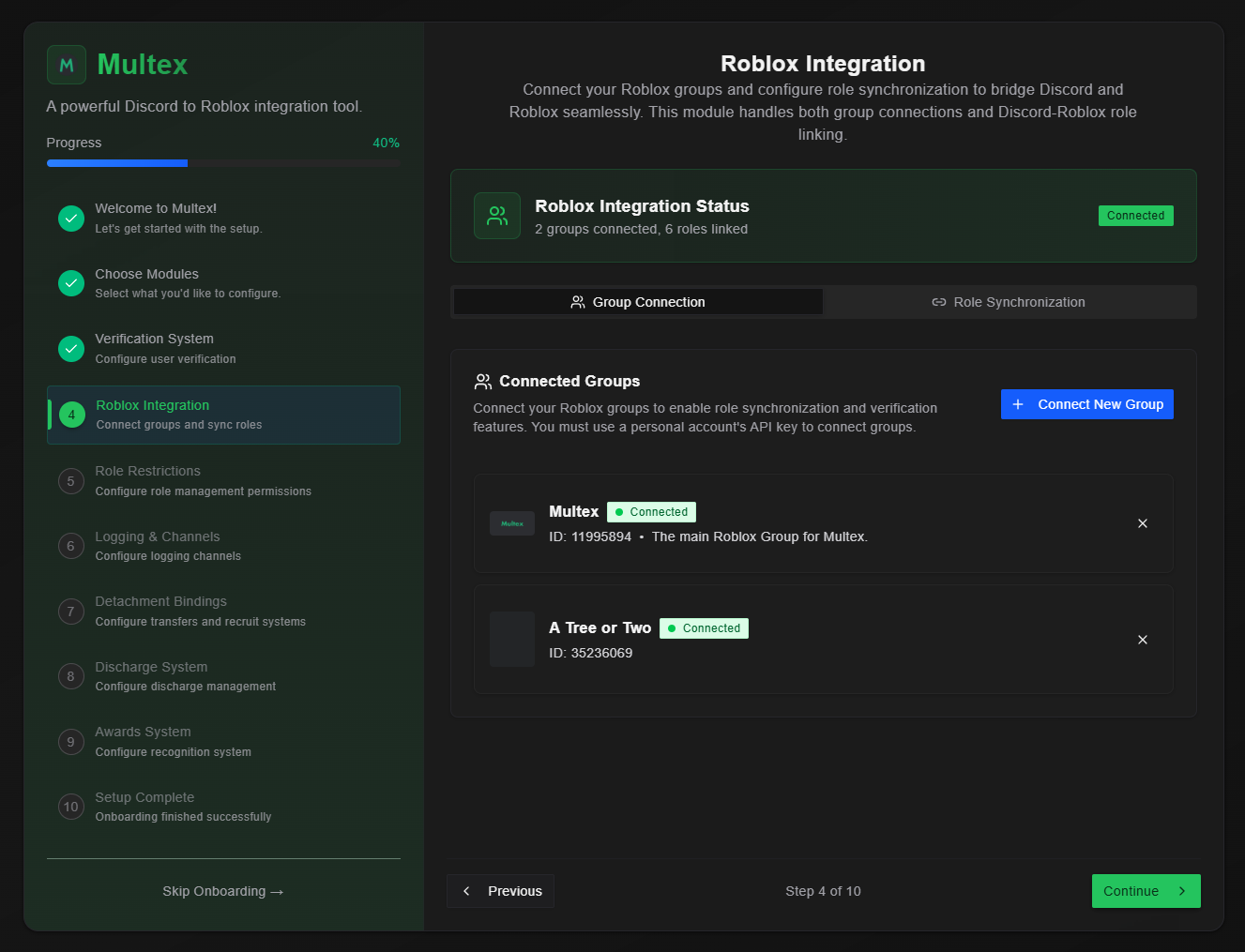 From your onboarding dashboard, click **Roblox Integration** to begin setup.
## Step 2: Add Your Roblox Group
From your onboarding dashboard, click **Roblox Integration** to begin setup.
## Step 2: Add Your Roblox Group
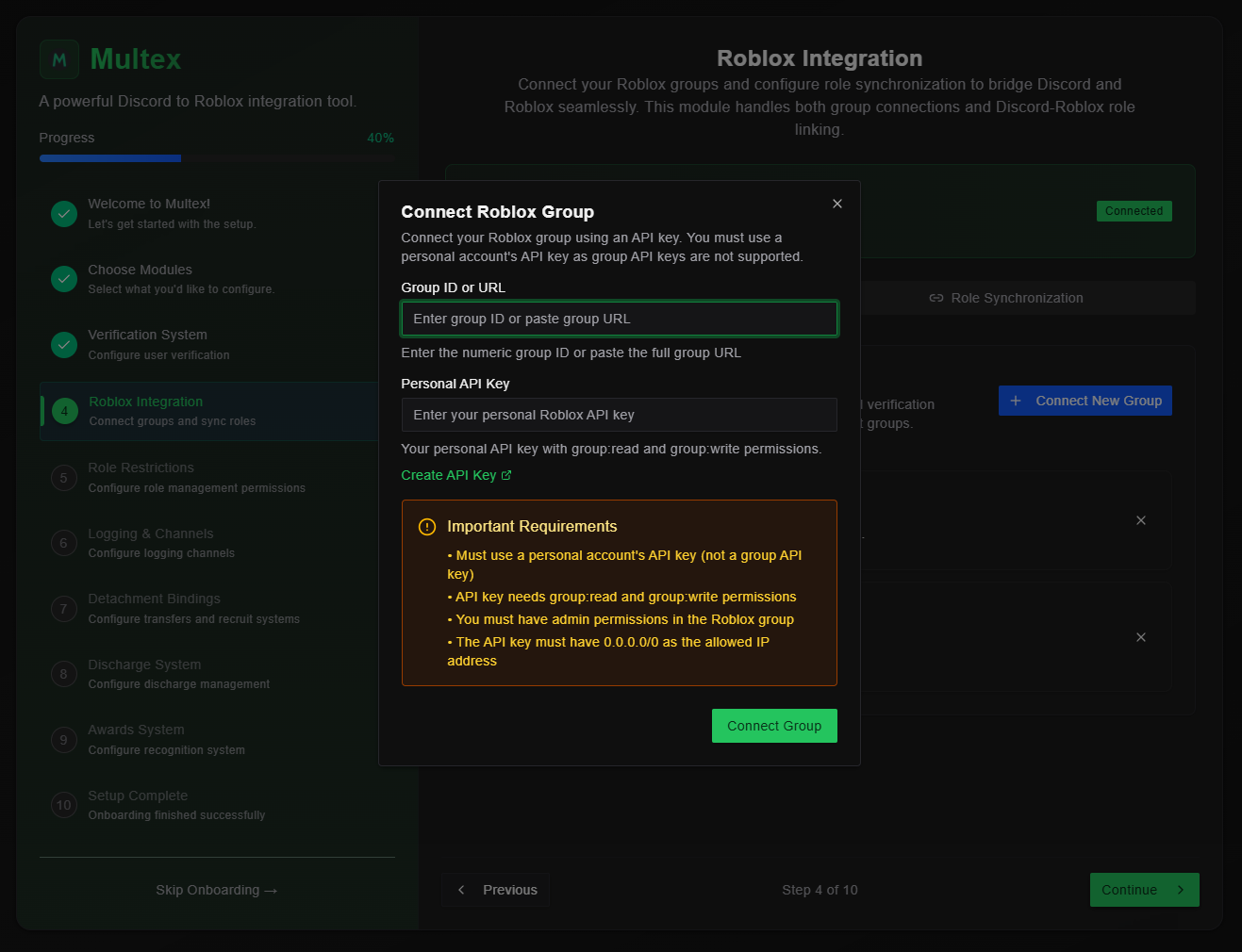 1. **Enter your Roblox group URL or ID** - Multex will fetch your group details
## Step 3: Create your Roblox API Key
1. **Enter your Roblox group URL or ID** - Multex will fetch your group details
## Step 3: Create your Roblox API Key
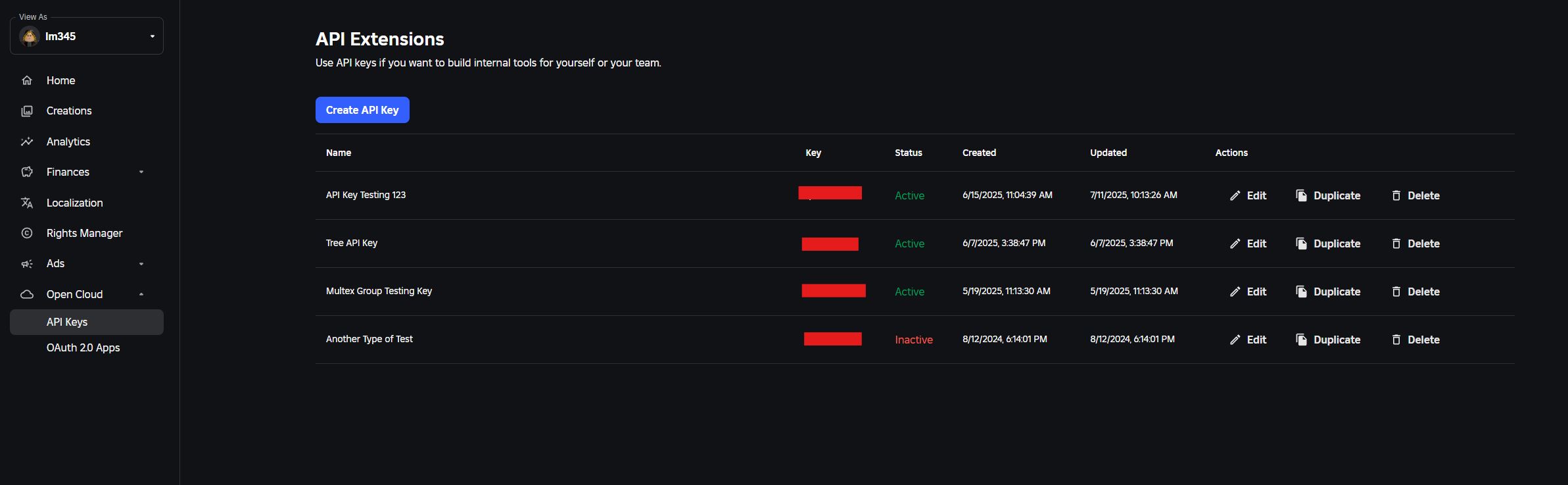 1. **Your Roblox Dashboard** - First, go to your [Roblox dashboard](https://create.roblox.com/dashboard/credentials?activeTab=ApiKeysTab)
2. **Click "Create API Key"** - Give your new API key a name and optionally a description
1. **Your Roblox Dashboard** - First, go to your [Roblox dashboard](https://create.roblox.com/dashboard/credentials?activeTab=ApiKeysTab)
2. **Click "Create API Key"** - Give your new API key a name and optionally a description
 3. **Configure API permissions:**
* Select **Groups** API system
* Add **Read** and **Write** operations
3. **Configure API permissions:**
* Select **Groups** API system
* Add **Read** and **Write** operations
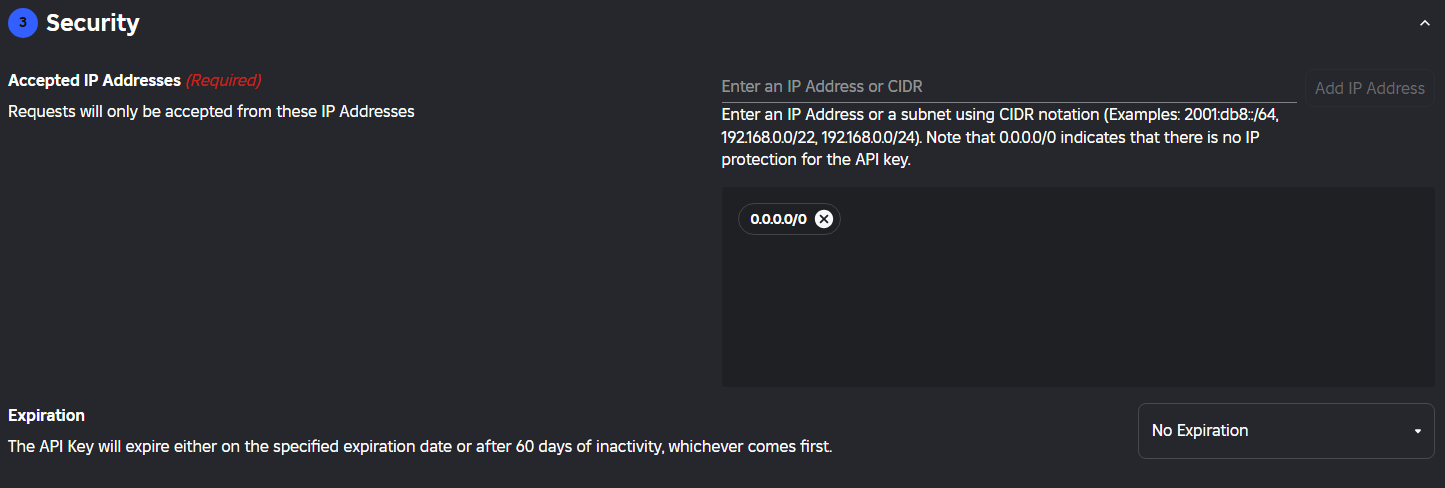 4. **Configure API security:**
* Set IP address to `0.0.0.0/0`
* Set API key expiration
5. **Save & Generate Key**
6. **Copy & Paste your API key** into Multex Personal API Key field
Your API key will show only once, so be sure to write it down in a safe and secure place.
7. **Click "Connect Group"** to finish integrating your group
If you correctly inputted your group ID/URL and your API key, you will see your group pop up.
Your API key is stored securely and encrypted. Never share it with anyone.
4. **Configure API security:**
* Set IP address to `0.0.0.0/0`
* Set API key expiration
5. **Save & Generate Key**
6. **Copy & Paste your API key** into Multex Personal API Key field
Your API key will show only once, so be sure to write it down in a safe and secure place.
7. **Click "Connect Group"** to finish integrating your group
If you correctly inputted your group ID/URL and your API key, you will see your group pop up.
Your API key is stored securely and encrypted. Never share it with anyone.