> ## Documentation Index
> Fetch the complete documentation index at: https://docs.multex.tech/llms.txt
> Use this file to discover all available pages before exploring further.
# Verification Setup
> Configure how users verify their accounts
## What is Verification Setup?
Verification Setup configures how users prove they're members of your Roblox group and receive appropriate Discord roles.
## Step 1: Access Verification Configuration
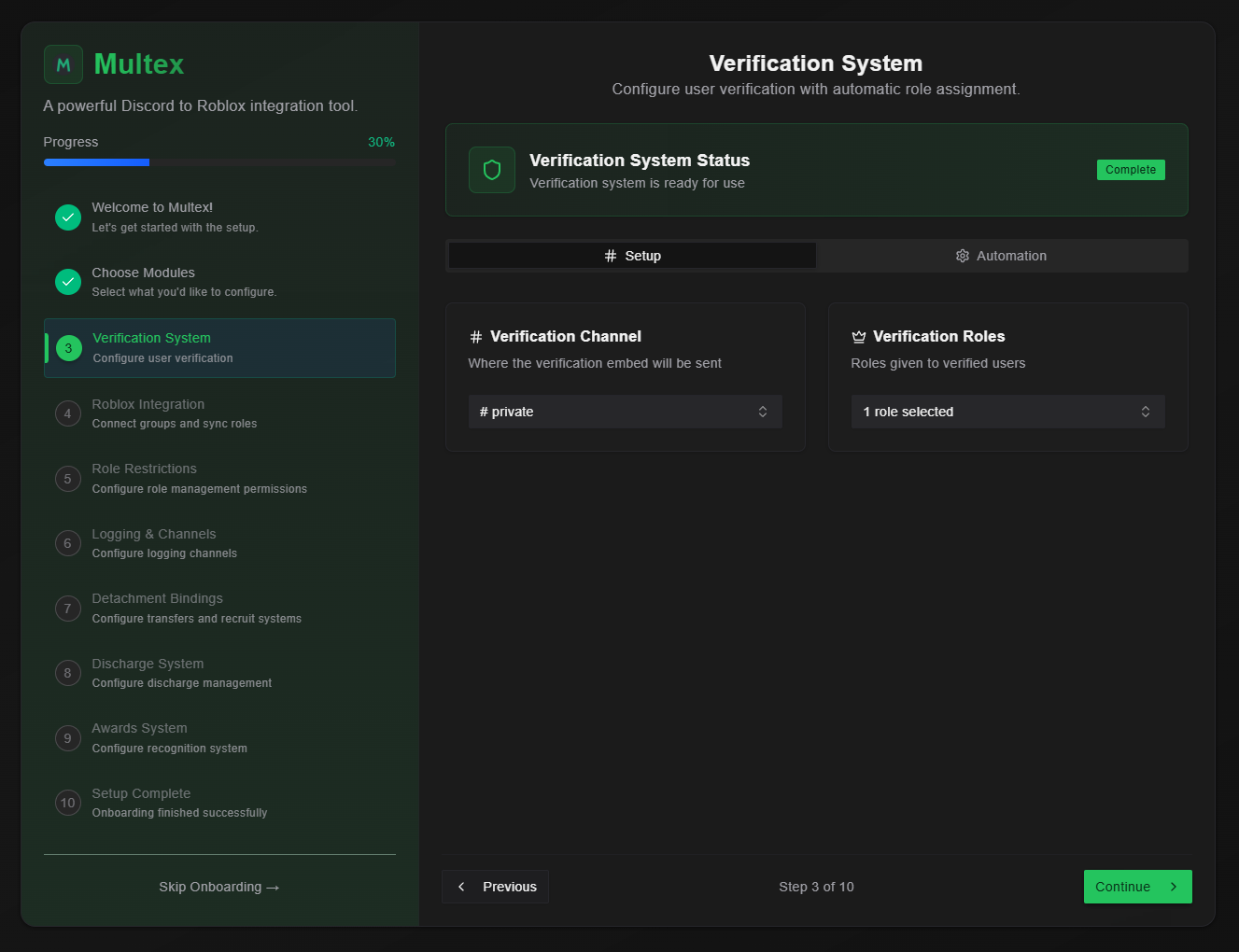 From your onboarding dashboard, click **Verification Setup** to configure the verification process.
## Step 2: Configure Verification Settings
1. **Verification Channel** - Choose which channel displays verification messages
2. **Verification Roles** - Roles that are given to the user after they successfully verified with Multex
## Step 3: Set Up Automation
From your onboarding dashboard, click **Verification Setup** to configure the verification process.
## Step 2: Configure Verification Settings
1. **Verification Channel** - Choose which channel displays verification messages
2. **Verification Roles** - Roles that are given to the user after they successfully verified with Multex
## Step 3: Set Up Automation
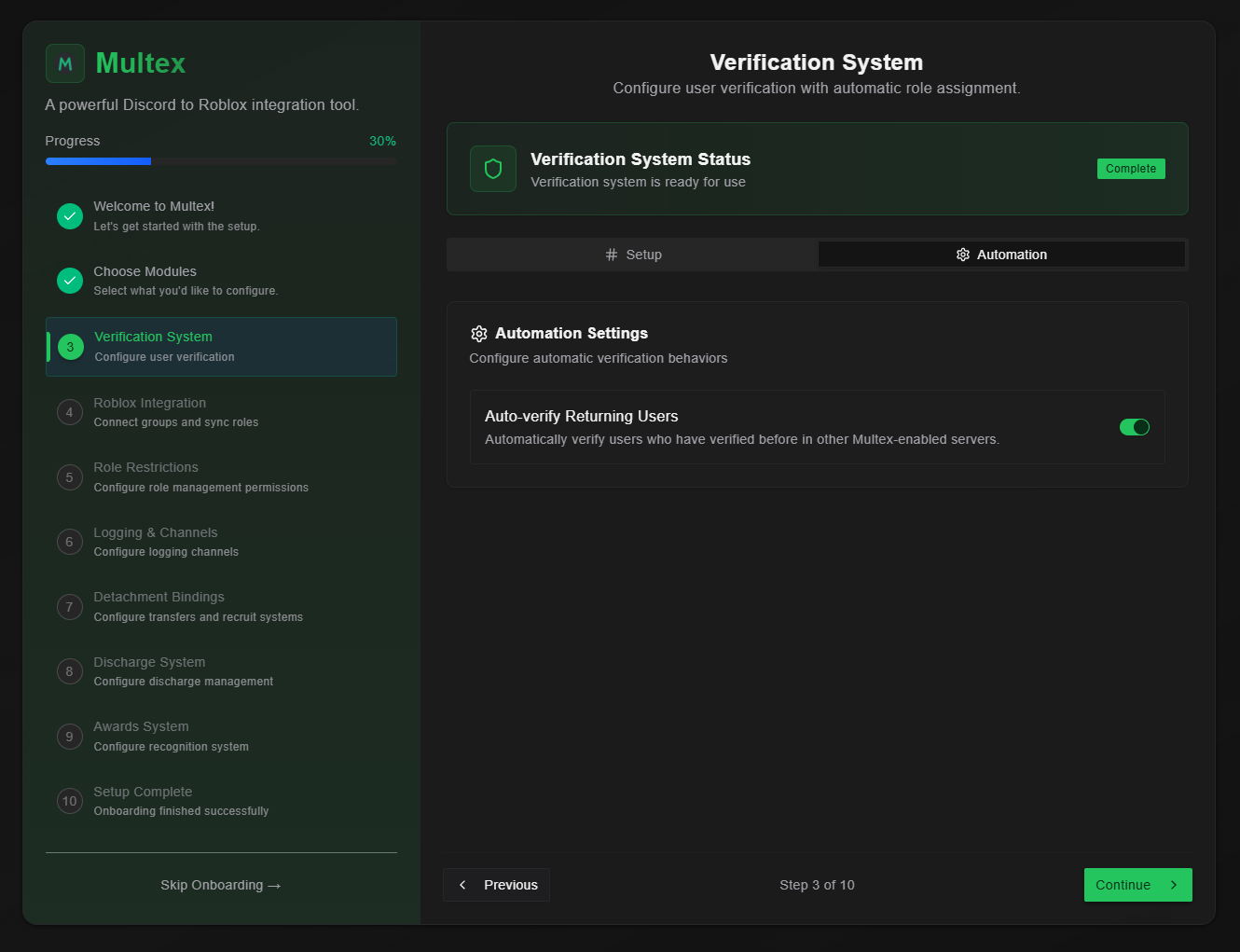 1. **Enable Auto-Verification** - Turn on automatic verification for users who have previously verified with Multex.
## Step 4: Test Verification
1. **Create a test account** or use an alt account
2. **Join your server** and attempt verification
3. **Check role assignment** happens correctly
Test the verification process thoroughly with different user scenarios to ensure it works as expected.
1. **Enable Auto-Verification** - Turn on automatic verification for users who have previously verified with Multex.
## Step 4: Test Verification
1. **Create a test account** or use an alt account
2. **Join your server** and attempt verification
3. **Check role assignment** happens correctly
Test the verification process thoroughly with different user scenarios to ensure it works as expected.